
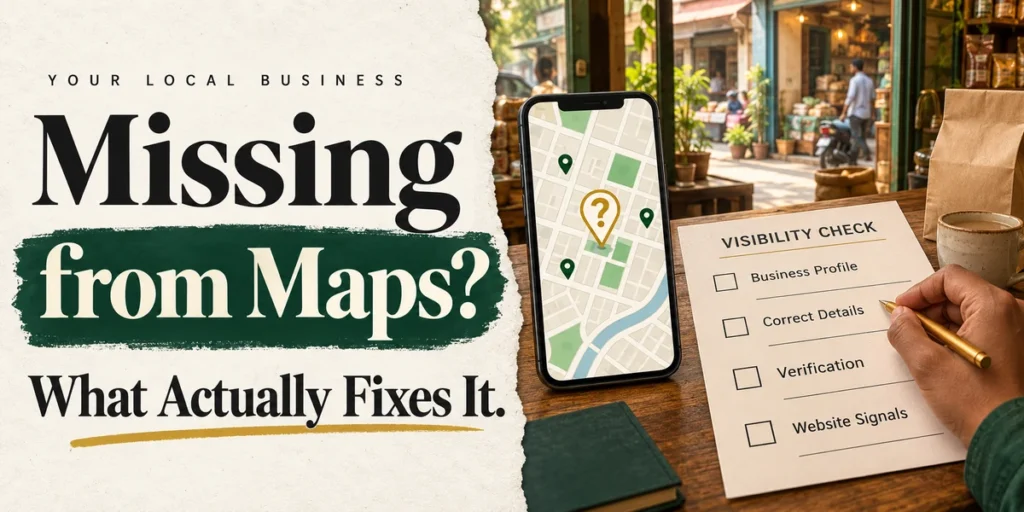
A shop owner opens Google Maps. Types the shop name. Nothing. Or worse, a competitor appears.
The shop is real. The address is correct. Customers walk in every day. But online, it is almost invisible.
This is a common and frustrating problem, and most advice online is vague. “Improve your SEO.” “Get more reviews.” None of it tells you what to fix first.
This post lists seven real reasons a local business does not appear in Maps, and the fix that actually works for each.
The short answer
Most local businesses are invisible in Maps for one of three reasons. No Google Business Profile, an unverified or incomplete profile, or wrong location details.
Fix those first. Reviews, photos, and posts help later, but they cannot fix a missing or unverified profile.
Why Maps matters for a local business
When someone searches “shop near me” or “service in my area,” Google often shows a map with three results. Those three results get most of the calls.
If you are not in that map, you are invisible to a large share of local buyers, even if your shop is excellent.
The 7 reasons and the fixes
Here they are. Check each one for your business.
1. No Google Business Profile
This is the most common reason. If you have not created a profile, you cannot appear in Maps.
The fix. Create a Google Business Profile at no cost. Add your business name, category, address, phone number, and hours.
2. The profile is not verified
A profile can exist and still not appear, because it is not verified. Verification confirms you are the owner.
The fix. Complete Google’s verification process. It usually involves a code by post, phone, or video, depending on your business type.
3. The address is wrong or too vague
A small error can remove you from the map. A missing floor, a wrong pin code, or an address that does not match the map.
The fix. Check the exact pin location. Move the marker to your door if needed. Confirm the address matches your signage and your website.
4. Your category is wrong or too broad
Google uses the primary category to decide which searches you appear in. “Shop” is too broad. “Hardware store” is specific.
The fix. Pick the most specific primary category that fits. Add a few relevant secondary categories.
5. You serve an area, not a shopfront
Some businesses do not have a customer-facing address. They serve a locality.
The fix. Set up a service area instead of a storefront address. Do not use a home address if you do not meet customers there.
6. Your name is stuffed with keywords
Some owners add extra keywords to the business name. This can look like spam and can hurt visibility.
The fix. Use your real business name, exactly as it appears on your signage. Keep keywords for your description, not your name.
7. Your hours and contact details are outdated
If your hours are wrong, or your phone number is old, customers and Google both lose trust.
The fix. Update hours, including holidays. Check the phone number. Add a website link if you have one.
The Maps visibility quiz: what would you fix first?
Three short scenes. Pick your move before you scroll. Then read the answer.
Scene one. Your business does not appear at all when you search its name. What do you check first?
A. Reviews.
B. Whether a Google Business Profile exists and is verified.
C. Photos.
The smart move: B. If the profile is missing or unverified, nothing else matters. A and C help later.
Scene two. Your business appears, but in the wrong location on the map. What is the fix?
A. Add more photos.
B. Adjust the pin location and confirm the address.
C. Ask for more reviews.
The smart move: B. The pin and address decide your map position. A and C do not fix location errors.
Scene three. You rank for a broad term but not for your specific service. What is likely wrong?
A. Your primary category is too broad.
B. You need more followers.
C. Your website is too fast.
The smart move: A. The category decides which searches you match. B and C do not affect category matching.
Do you see the pattern? In every scene, the smart move is the same. Fix the foundation before you chase extras.
A real story about a hidden shop
A composite story, based on many real cases. A small hardware shop had been open for years. Customers knew it by name. But on Maps, it did not appear.
The owner assumed Google was broken. We checked together. There was no Google Business Profile at all.
We created one, verified it, set the correct category, and fixed the pin location. We added real photos of the shopfront and updated the hours.
Here is an illustrative example of what changed. These numbers are invented for illustration.
| Metric | Before | After 6 weeks |
|---|---|---|
| Calls from Maps | 0 | 14 per month |
| Direction requests | 0 | 22 per month |
| Profile views | 0 | 300 per month |
The numbers are illustrative, not guaranteed. But the pattern is common. The shop did not need ads. It needed to exist on the map.
The owner told me, “Dukaan thi, par map pe nahi thi.” The shop existed, but not on the map.
That is the lesson. Visibility starts with a profile, not a budget.
What actually fixes it, in order
Here is the order that works. Do not skip ahead.
- Create a Google Business Profile.
- Verify it.
- Set the correct primary category.
- Fix the address and pin location.
- Add hours, phone number, and a website link.
- Add real photos of the shopfront and interior.
- Ask a few happy customers for honest reviews.
- Post updates occasionally.
- Check the profile monthly for accuracy.
Reviews and posts help, but only after steps one to four are done. A verified, accurate profile with no reviews will appear. An unverified profile with many reviews will not.
For the official guidance, read the Google Business Profile help center and Google’s Search Essentials. Both are free.
Common mistakes local businesses make
- Never creating a profile, and assuming Google will list the shop automatically.
- Leaving the profile unverified.
- Using a vague or incorrect category.
- Stuffing keywords into the business name.
- Using a home address when customers do not visit.
- Ignoring the pin location on the map.
- Asking for reviews before fixing the basics.
What no profile can promise
A profile cannot promise customers. It makes you visible, which is the first step. Sales depend on your offer, your service, and your location.
Svidya’s numbers are examples, not guarantees. 200+ students taught. A highest package of 9.8 LPA. Three free demo classes. The highest package is one person’s result. It is not a forecast for you.
Your action checklist
Print this. Use it this week.
- Search your business name on Google Maps.
- Create a Google Business Profile if you do not have one.
- Complete verification.
- Set the most specific primary category.
- Fix the address and pin location.
- Add hours, phone number, and website.
- Add real photos.
- Ask three happy customers for honest reviews.
- Book the demo. At Svidya you get three free demo classes for the AI-Powered Marketing Course. Attend all three before you decide.
- Check the profile monthly.
Final words and your next step
A local business not appearing in Google Maps is usually a foundation problem, not a marketing problem.
Create the profile. Verify it. Fix the category, address, and pin. Then add photos, reviews, and posts.
You do not have to guess. Start with the profile this week.
If you want to learn local SEO and real client work with feedback, start with a free demo class at Svidya’s AI-Powered Marketing Course. Bring the checklist. Ask the awkward questions. Then decide, with proof in your hand and no pressure from anyone.
About the author
Shubhankar Vashist is the founder of SVidya, based in Delhi. He has 6+ years of marketing experience across healthcare, pharma, cosmetics, e-commerce and agencies. He teaches digital marketing by making students build real assets.
FAQ
Why is my local business not showing up on Google Maps?
The most common reasons are a missing Google Business Profile, an unverified profile, a wrong address or pin location, or a category that is too broad. Fix these before you worry about reviews or photos.
Is a Google Business Profile free?
Yes. Creating and managing a Google Business Profile is free. Verification is also free, though the method depends on your business type.
How long does it take to appear on Maps after verifying?
It varies. Some businesses appear within days, others take a few weeks. Make sure your category, address, and pin are correct, and check the profile regularly.
Do reviews help me appear on Maps?
Reviews help, but they cannot fix a missing or unverified profile. Get the foundation right first, then ask happy customers for honest reviews.
Can I use my home address for my business profile?
Only if you meet customers there. If you serve an area without a shopfront, set a service area instead of a home address. This keeps your profile accurate and avoids issues.